At our March 20th meeting, we introduced a new mode called MeshCore. MeshCore is an off-the-grid text messaging system and works with the iPhone or Android device you already own. It is an evolution of the popular MeshTastic system and improves many of MeshTastics shortcomings.
We played a good introductory video at the meeting and if you missed it, or want to see it again, it is available here:
https://www.youtube.com/watch?v=t1qne8uJBAc
To get started you need a MeshCore ‘Companion’ device. MeshCore devices operate in the unlicensed LoRa ISM bands, specifically on 927.875 MHz in Southern California. Devices are very simple and consist of a small circuit board, power source and antenna. You can purchase pre-made devices or build one yourself. Circuit boards are all inclusive and ready to plug in and work right out of the box. No soldering is necessary and the only assembly necessary is to attach the antenna and power source. Power sources connect with a USB ‘C’ cable and you can use a normal smartphone charger. Batteries plug into the circuit board with a JST connector. Most boards handle battery charging and even solar recharging automatically.
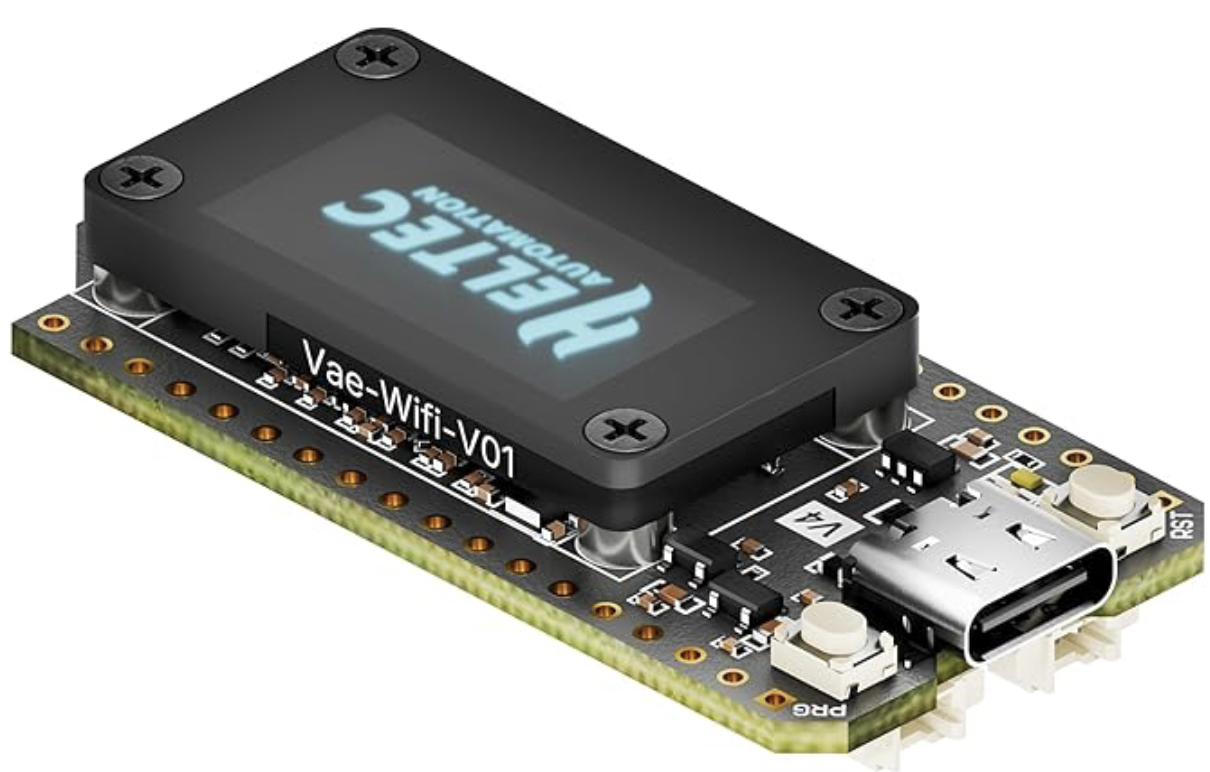 |
Left, is the board demonstrated at the meeting. It is a Heltec V4 LoRa board available on Amazon for $30. It included a small coil antenna, battery pigtails and is ready to ‘flash’. Flashing is the procedure used to install the device firmware onto the board. It is easy and just requires a USB C cable to connect to your computer. You just visit the MeshCore Flasher website, find your device on the list, and select ‘Companion Bluetooth‘ then ‘Flash’. Everything is handled for you. The rest of the setup is handled through the SmartPhone app using BlueTooth. |
Before you proceed… you will need to install the MeshCore App on your iPhone or Android SmartPhone, or alternatively, run the MeshCore Web Client on your PC, Mac, or Linux computer using the Chrome Browser. Links for these can be found below. While you can use this on a computer if necessary, we recommend you install one of the SmartPhone versions.
You will first need to pair your device with your phone. This is done just like anything else you may have paired in the past.
- Before you power up your board for the first time, have a pencil and paper ready. Then power up your board. You will see a number displayed. This is your Bluetooth pairing code. Write it down.
- Make sure your device is powered up, then open up the Bluetooth configuration screen and select it from the list of devices. When you are asked for the pairing code, enter the number you wrote down.
Now open up the MeshCore app on your phone.
- Tap on the ‘gear’ icon at the top to open up the ‘Settings’ screen.
- Give your device a name. This is what other users will see. You can make this anything you like such as a callsign, nickname, or something else.
- The next item is ‘Public Key’. Skip that, it is done automatically.
- Next is ‘Longitude’ and ‘Latitude’. This is not required. You can skip this for now.
- Next is ‘Share Position in Advert’. An ‘Advert’ is what your device sends to the network to let others know you are connected. No need to check this box.
| The ‘Radio Settings’ shown at right will be the same for everyone.
Make sure your ‘Radio Settings’ look like the Radio Settings shown in this screenshot. Double check everything and when you are satisfied, click on the Check Mark in the upper right corner. You do not need to be concerned with any other settings. These are all you need to get up and running. When you are all finished, reboot your device by removing power and applying power again. Open up your MeshCore app, and tap on the 3 dots in the upper right corner. If you see ‘Connnect’ listed as an option, tap that to connect. If you see ‘Disconnect’ listed as an option, you are already connected. Good! |
 |
Tap on the beacon icon on the top row (((*))) and choose ‘Advert – Flood Routed’. This will tell everyone you are now on the system.
Now pay attention to the ‘Contacts’ page. You should see ‘Contacts’ begin to appear on that page.
All further operations will be done through the app. Please watch the video below for a thorough introduction.
If you have questions or problems, check into the Digital and Projects Net on Tuesdays at 8pm. We’ll be happy to help.
MeshCore Resources:
MeshCore App – Apple iOS App Store: https://meshcore.co.uk/app/MeshOS-0.3.9.apk
MeshCore App – Google Play Store: https://play.google.com/store/apps/details?id=com.liamcottle.meshcore.android
MeshCore App for Chrome Browser (PC, Mac, Linux): https://app.meshcore.nz/
Using the MeshCore App Video: https://youtu.be/PeThXmxLE4k
MeshCore Website: https://meshcore.co.uk
MeshCore Map: https://map.meshcore.dev/?zoom=11&lat=34.4791&lon=-119.6459
Heltec ESP32 V4 LoRa Board on Amazon ($30): https://a.co/d/0f0Ymujg
Heltec ESP32 V3 LoRa Board with battery and case on Amazon ($35): https://a.co/d/0i8DBHsc
MeshCore Firmware Flasher for Chrome Browser: https://flasher.meshcore.co.uk